After completing this lesson, you’ll be able to:
In this lesson, you will:
After completing this lesson, you’ll be able to:
In this lesson, you will:
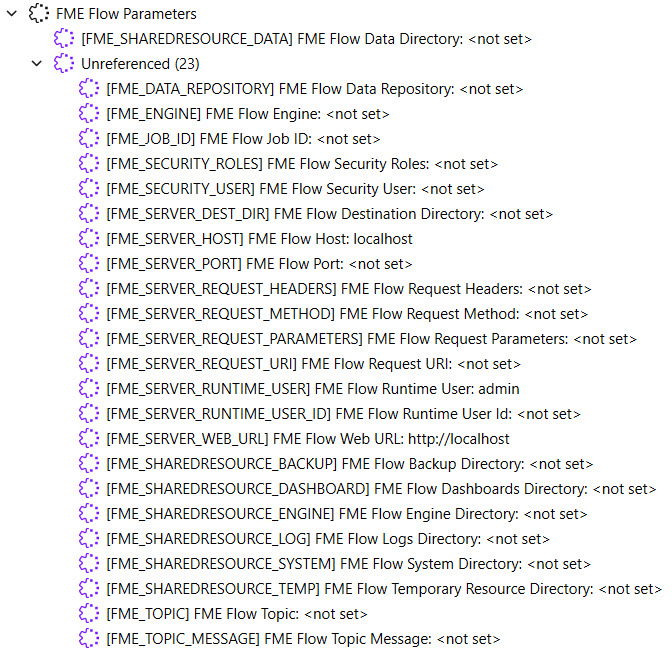
FME Flow parameters reference FME Flow system settings to customize and control workspaces run from FME Flow. FME Workbench lists the FME Flow parameters in the Navigator window for easy insertion into workflows.
Some commonly used FME Flow parameters include:
You can find a description of all FME Flow parameters in our FME Flow Parameters documentation.
You can learn more about managing data in the FME Flow Resources with the FME_SHAREDRESOURCE_DATA parameter in Manage FME Flow Data and Connections.
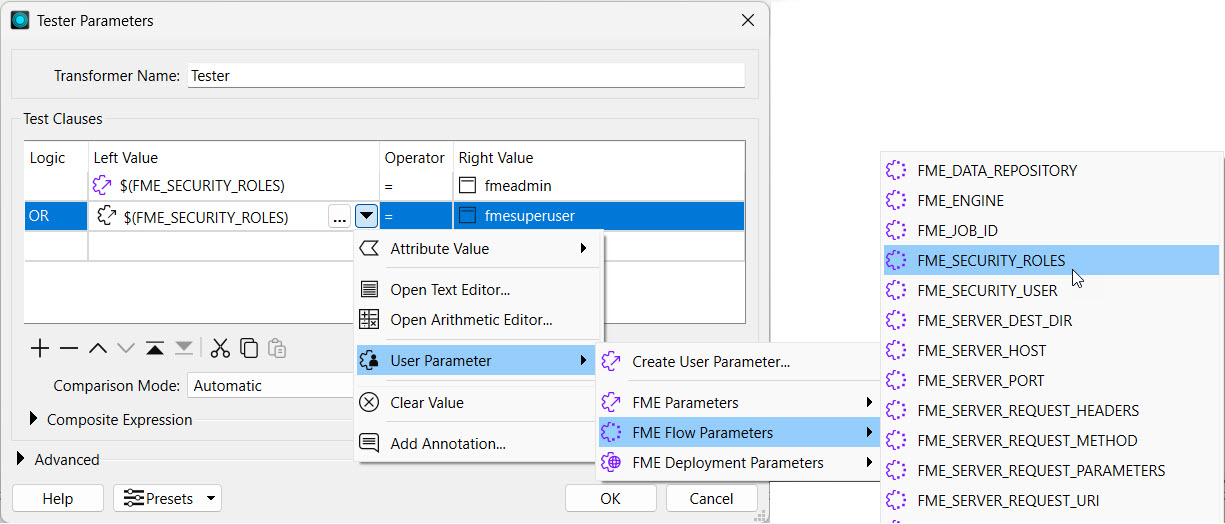
FME Flow parameters are linked to readers, writers, and transformers, just as existing user parameters are. Here's an example of using the FME_SECURITY_ROLES parameter in a Tester to filter for users who belong to the fmeadmin or fmesuperuser roles on FME Flow. You might expand this workflow to write specific data to the user if they belong to one of those roles, and to exclude it otherwise.
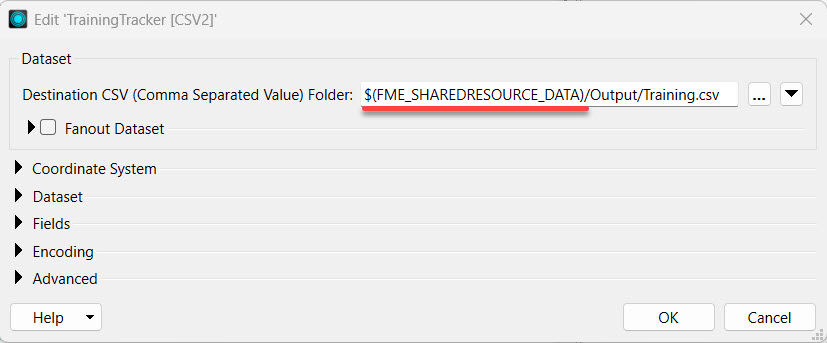
Like user parameters in FME Workbench, FME Flow parameters can be hardcoded into workspace parameters following the $(FME_FLOW_PARAMETER) format. Here's an example where the output CSV location references the FME Flow Resources Data folder using the $(FME_SHAREDRESOURCE_DATA) parameter.
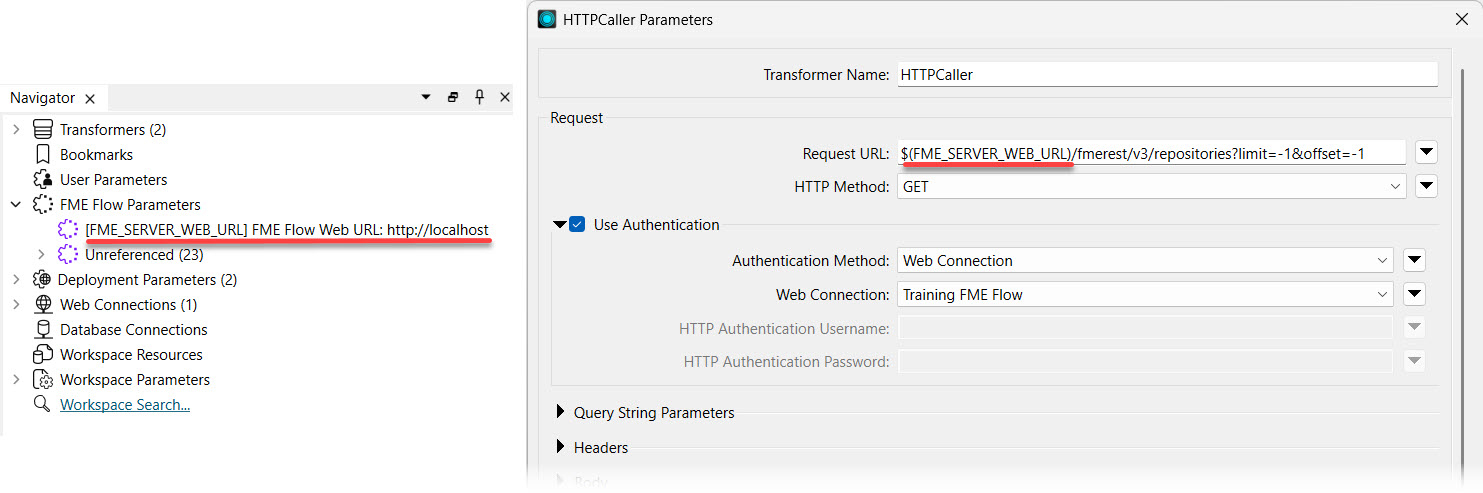
By default, FME Workbench populates some FME Flow parameters once you establish a successful connection to FME Flow. These include FME_SERVER_WEB_URL, FME_SERVER_RUNTIME_USER, and FME_SERVER_HOST. Otherwise, when you run workspaces in FME Workbench that reference FME Flow parameters, you need to set the parameter value manually. However, when the workspace runs on FME Flow using these parameters, FME Flow automatically fills in the value based on the FME Flow system settings. Here's an example where the FME_SERVER_WEB_URL parameter is referenced in an HTTP Caller to make a GET request to the FME Flow REST API. If you move the workspace to different FME Flow instances, the parameter will update to use the correct URL value for each FME Flow.
While running workspaces on FME Workbench can be useful for testing and debugging, you do not need to set these values to run the workspace only with FME Flow, as it will automatically set and use the correct corresponding value.

Jennifer continues updating the workspaces she will deploy to FME Flow. She's working on one that clips election voting locations by neighborhood and writes a list of voting places for each neighborhood. This workspace currently writes the data to a local file system, and Jennifer shares it with users who need it for their FME workflows. However, others can easily access it if it were written to the FME Flow Resources, so other users' workflows can read the data from Resources. To accomplish this, Jennifer will use the $(FME_SHAREDRESOURCE_DATA) parameter to write the output data to the FME Flow Resources Data folder.
For this exercise, follow the steps below to help Jennifer configure the workspace to use the $(FME_SHAREDRESOURCE_DATA) parameter.
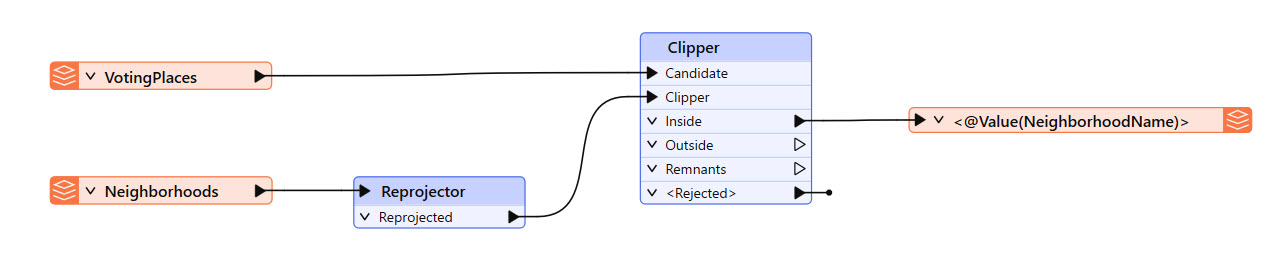
Open the starting workspace (C:\FMEData\Workspaces\DeployWorkflowsWithFMEFlow\use-fme-flow-parameters.fmw) in FME Workbench. The workspace reads the Voting Places and Neighborhoods, clips the data by neighborhood, and writes the clipped data to a Microsoft Excel file with a different sheet for each neighborhood.
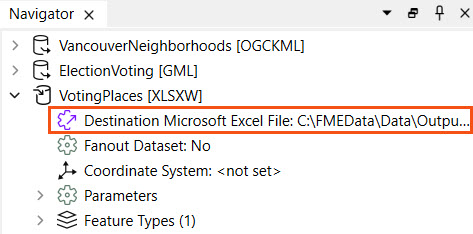
Expand the VotingPlaces [XLSXW] writer parameters in the Navigator and double-click the Destination Microsoft Excel File parameter.
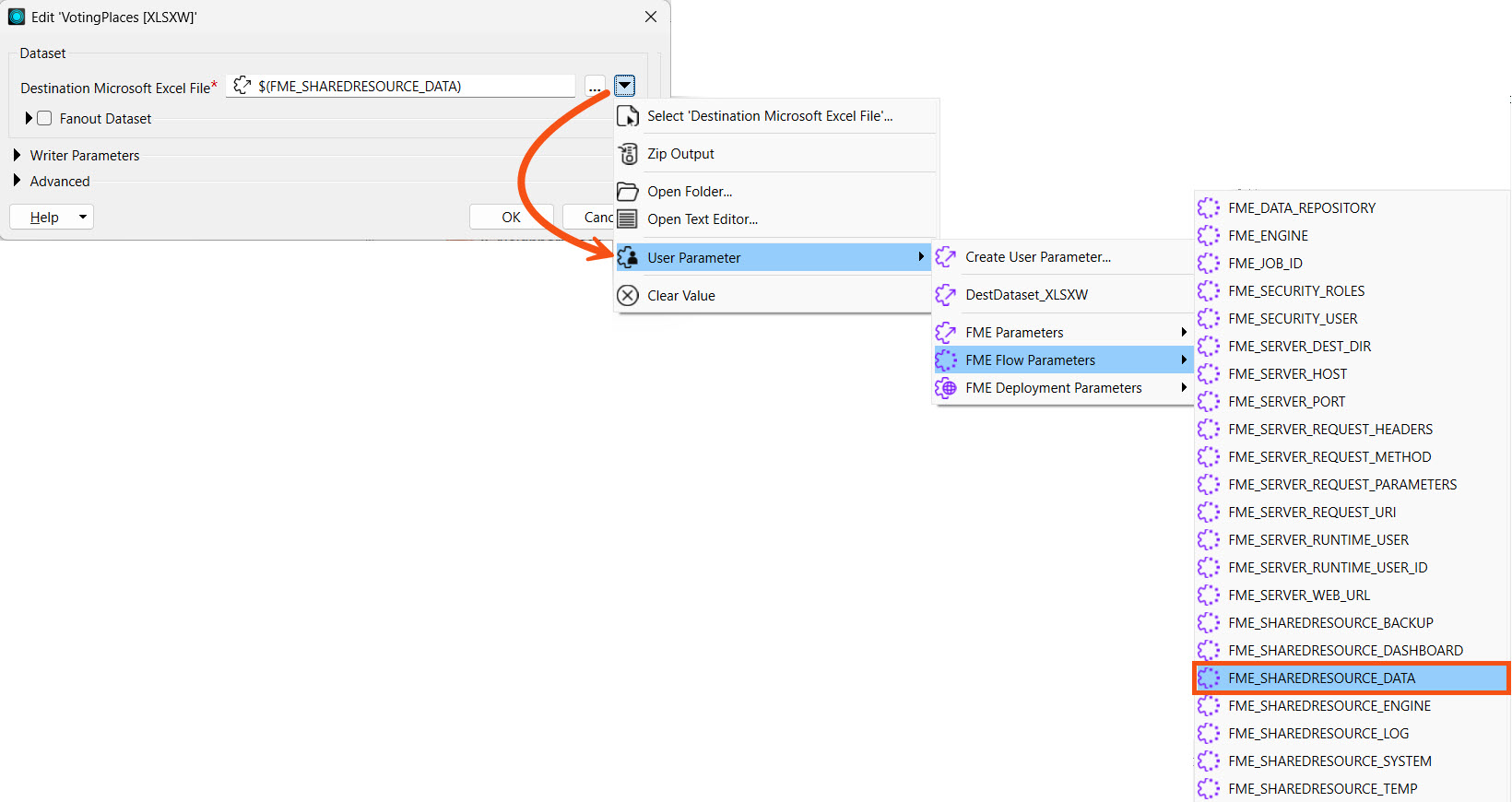
Use the drop-down arrow to select the $(FME_SHAREDRESOURCE_DATA) FME Flow parameter and then add \Output\VotingPlaces.xlsx.
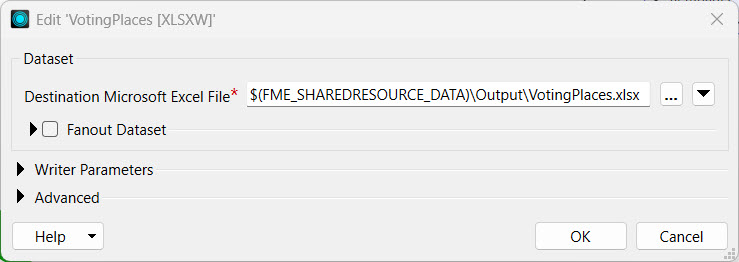
Now that the workspace writes data using the FME Flow parameter, click OK to close the writer settings.
Since you have not set the value for the $(FME_SHAREDRESOURCE_DATA) in FME Workbench, you won't run the workspace before publishing it to FME Flow.
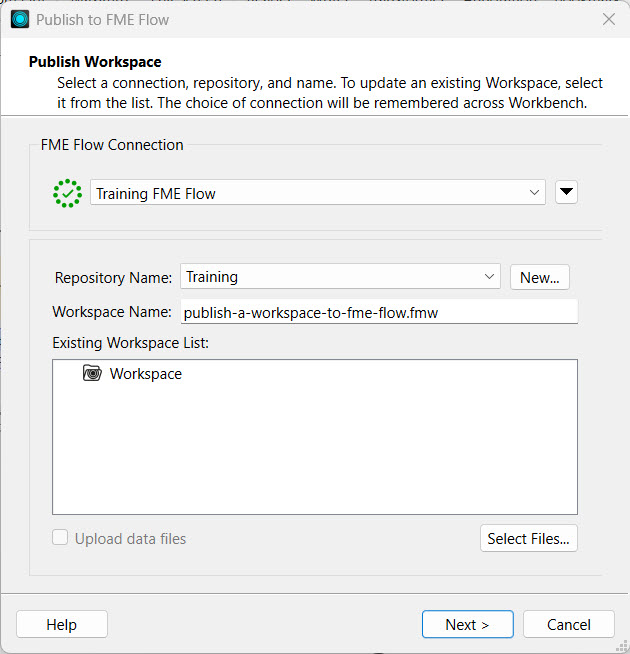
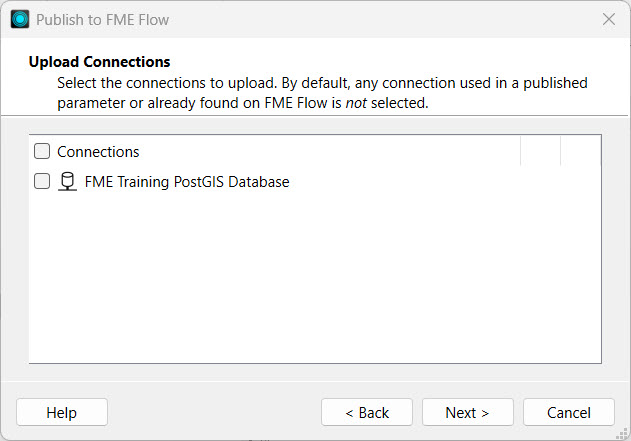
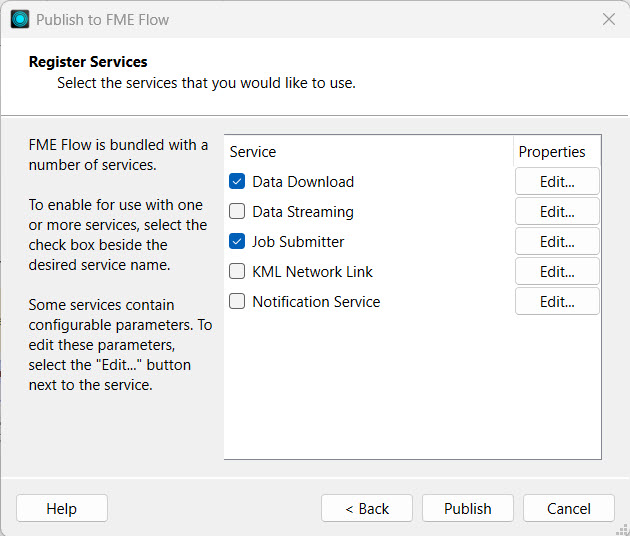
Publish the workspace to the Training repository and register it with the Job Submitter service.

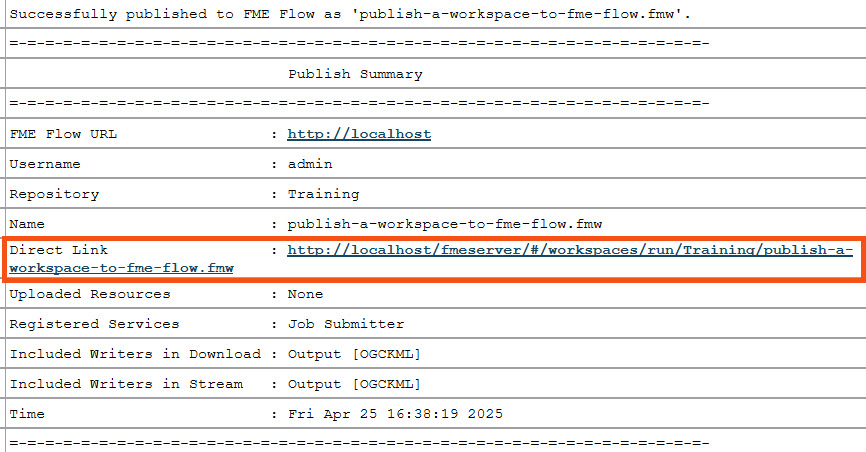
Navigate to the FME Flow Run Workspace page and select your recently published workspace. The Destination Microsoft Excel File parameter shows the $(FME_SHAREDRESOURCE_DATA) parameter you referenced in the writer settings.
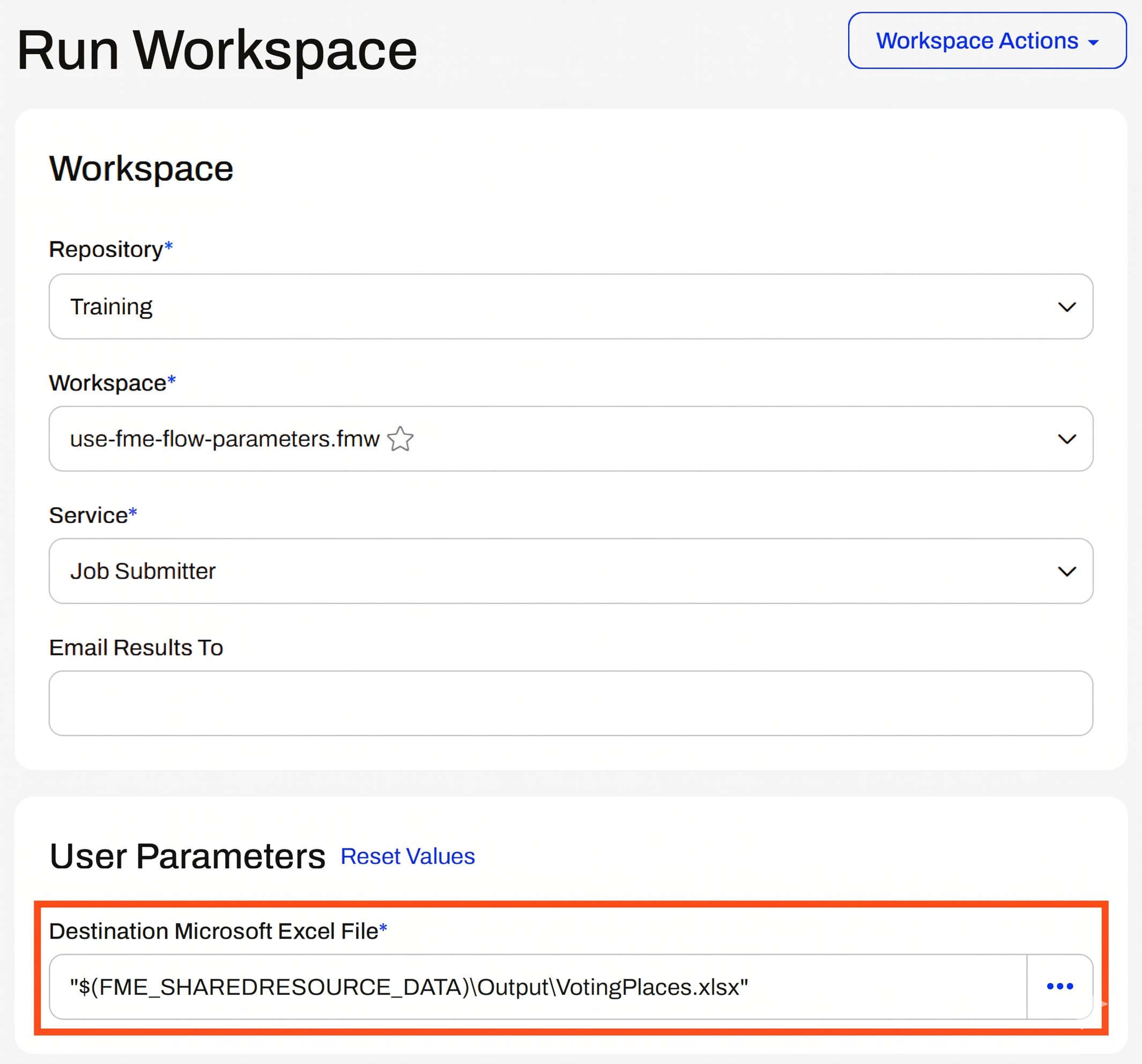
Don't change any settings, then click Run. The workspace runs and processes the Voting Places data.
Open Resources, and select the Data and then Output folders.
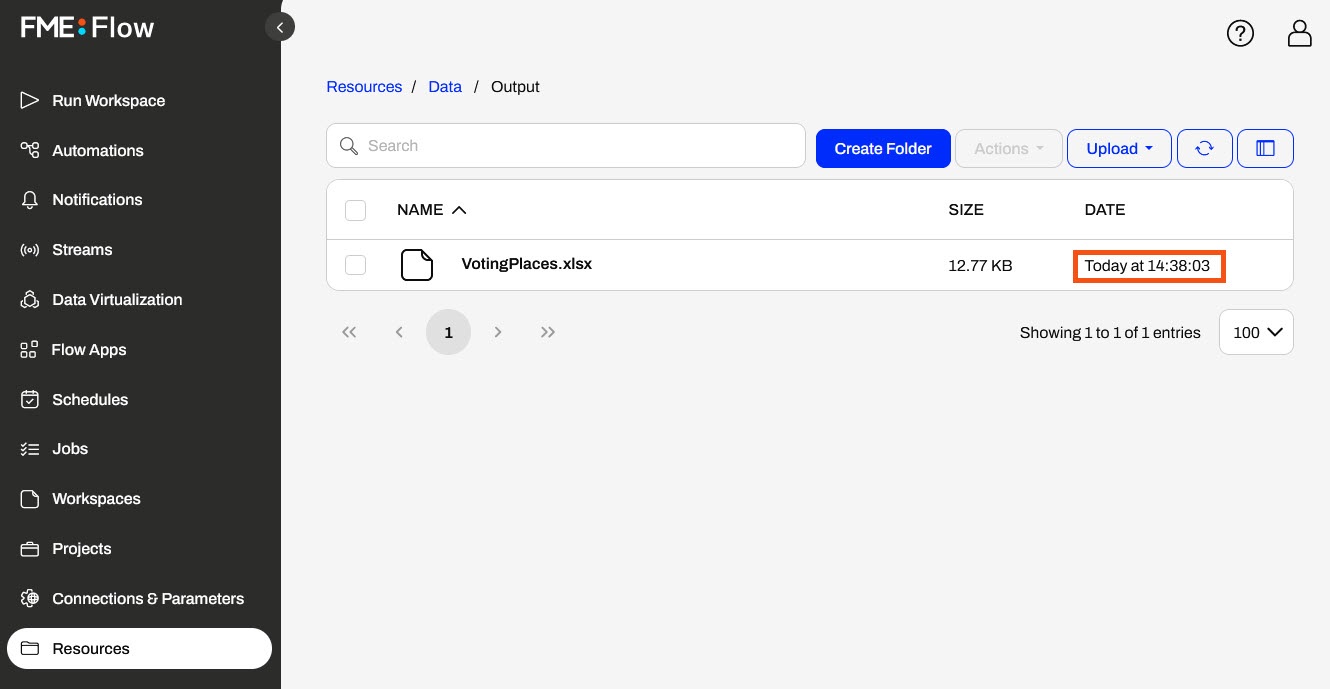
Here, you'll see the workspace wrote the VotingPlaces.xlsx file a moment ago. The workspace used the $(FME_SHAREDRESOURCE_DATA) parameter to reference the FME Flow Resources location for the output. Jennifer's next steps will be to automate this workflow and run it on a schedule to keep the data in Resources up to date for other users to access.
FME Flow parameters reference FME Flow system settings to customize and control workspaces run from FME Flow. FME Workbench lists the FME Flow parameters in the Navigator window for easy insertion into workflows.
Some commonly used FME Flow parameters include:
You can find a description of all FME Flow parameters in our FME Flow Parameters documentation.
You can learn more about managing data in the FME Flow Resources with the FME_SHAREDRESOURCE_DATA parameter in Manage FME Flow Data and Connections.
FME Flow parameters are linked to readers, writers, and transformers, just as existing user parameters are. Here's an example of using the FME_SECURITY_ROLES parameter in a Tester to filter for users who belong to the fmeadmin or fmesuperuser roles on FME Flow. You might expand this workflow to write specific data to the user if they belong to one of those roles, and to exclude it otherwise.
Like user parameters in FME Workbench, FME Flow parameters can be hardcoded into workspace parameters following the $(FME_FLOW_PARAMETER) format. Here's an example where the output CSV location references the FME Flow Resources Data folder using the $(FME_SHAREDRESOURCE_DATA) parameter.
By default, FME Workbench populates some FME Flow parameters once you establish a successful connection to FME Flow. These include FME_SERVER_WEB_URL, FME_SERVER_RUNTIME_USER, and FME_SERVER_HOST. Otherwise, when you run workspaces in FME Workbench that reference FME Flow parameters, you need to set the parameter value manually. However, when the workspace runs on FME Flow using these parameters, FME Flow automatically fills in the value based on the FME Flow system settings. Here's an example where the FME_SERVER_WEB_URL parameter is referenced in an HTTP Caller to make a GET request to the FME Flow REST API. If you move the workspace to different FME Flow instances, the parameter will update to use the correct URL value for each FME Flow.
While running workspaces on FME Workbench can be useful for testing and debugging, you do not need to set these values to run the workspace only with FME Flow, as it will automatically set and use the correct corresponding value.
Jennifer continues updating the workspaces she will deploy to FME Flow. She's working on one that clips election voting locations by neighborhood and writes a list of voting places for each neighborhood. This workspace currently writes the data to a local file system, and Jennifer shares it with users who need it for their FME workflows. However, others can easily access it if it were written to the FME Flow Resources, so other users' workflows can read the data from Resources. To accomplish this, Jennifer will use the $(FME_SHAREDRESOURCE_DATA) parameter to write the output data to the FME Flow Resources Data folder.
For this exercise, follow the steps below to help Jennifer configure the workspace to use the $(FME_SHAREDRESOURCE_DATA) parameter.
Open the starting workspace (C:\FMEData\Workspaces\DeployWorkflowsWithFMEFlow\use-fme-flow-parameters.fmw) in FME Workbench. The workspace reads the Voting Places and Neighborhoods, clips the data by neighborhood, and writes the clipped data to a Microsoft Excel file with a different sheet for each neighborhood.
Expand the VotingPlaces [XLSXW] writer parameters in the Navigator and double-click the Destination Microsoft Excel File parameter.
Use the drop-down arrow to select the $(FME_SHAREDRESOURCE_DATA) FME Flow parameter and then add \Output\VotingPlaces.xlsx.
Now that the workspace writes data using the FME Flow parameter, click OK to close the writer settings.
Since you have not set the value for the $(FME_SHAREDRESOURCE_DATA) in FME Workbench, you won't run the workspace before publishing it to FME Flow.
Publish the workspace to the Training repository and register it with the Job Submitter service.
Navigate to the FME Flow Run Workspace page and select your recently published workspace. The Destination Microsoft Excel File parameter shows the $(FME_SHAREDRESOURCE_DATA) parameter you referenced in the writer settings.
Don't change any settings, then click Run. The workspace runs and processes the Voting Places data.
Open Resources, and select the Data and then Output folders.
Here, you'll see the workspace wrote the VotingPlaces.xlsx file a moment ago. The workspace used the $(FME_SHAREDRESOURCE_DATA) parameter to reference the FME Flow Resources location for the output. Jennifer's next steps will be to automate this workflow and run it on a schedule to keep the data in Resources up to date for other users to access.
